Sidebar Controls
The sidebar runs top to bottom in this order:

- Settings — opens the connection and preferences panel.
- Connect / Disconnect — toggles the serial connection.
- Play / Pause — starts or pauses live data streaming (does not disconnect).
- Controls — opens the plot and trace editing panel. Diagnostics are at the bottom of this panel.
- Screen Recording — starts or stops video capture of the session.
- Screenshot — captures a still image of the current view (copied to clipboard by default).
- Analysis — opens signal inspection tools including markers and trace statistics.
- CSV Capture — starts or stops raw data logging to a CSV file.
- Serial Monitor — opens the text-oriented serial view.
- Help / About — version, product information, and in-app documentation.
Sidebar Icon Details
The stream can be paused while remaining connected, so the Connect/Disconnect and Play/Pause icons combine to show the current state. Connection vs. disconnection and streaming vs. pause are both indicated within the icons.
| State | Icons |
|---|---|
| Disconnected |  |
| Connected, paused | 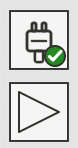 |
| Connected, streaming |  |
A red ✕ on the connection icon means no active connection; a green checkmark means an active connection.
Screen Recording and CSV Capture each have an idle and an active state. Both are indicated by the icon pulsing red while capturing.
| Capture | Idle | Active |
|---|---|---|
| Screen Recording |  |
 |
| CSV Capture |  |
 |
Main Desktop Features
The main desktop features open in the side panel from their sidebar icons. Each has its own section in this guide:
- Settings — serial connection, preferences, and screen/CSV capture.
- Controls — plot and trace editing, axes, and display modes.
- Trace Configuration — trace labels, colors, and derived traces.
- Diagnostics Status Bar — live connection and performance readout.
- Analysis — markers, reference lines and bands, and trace statistics.