Install on Windows
This page covers installing the VoidLoop ViewPoint™ desktop application on Windows 10 and 11. The desktop app is the live data receiver and visualizer; the Arduino IDE and the VoidLoop ViewPoint™ Arduino library are installed separately (see Next steps).
1. Download and Install VoidLoop ViewPoint™
- Open the folder downloaded from the link sent to your email.
- Run the
ViewPoint.msiWindows application installer. -
A Microsoft Defender SmartScreen dialog may open. Click More info, then Run anyway.
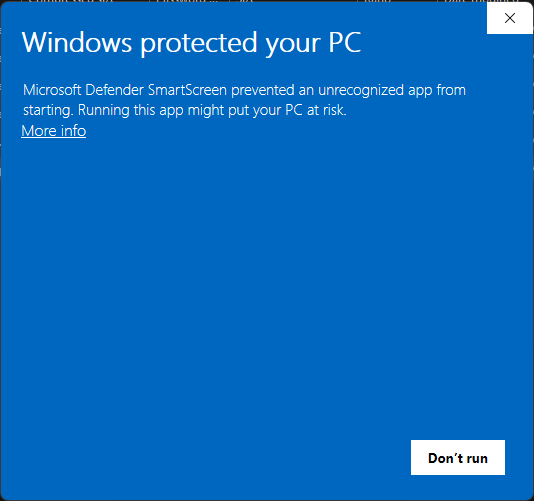
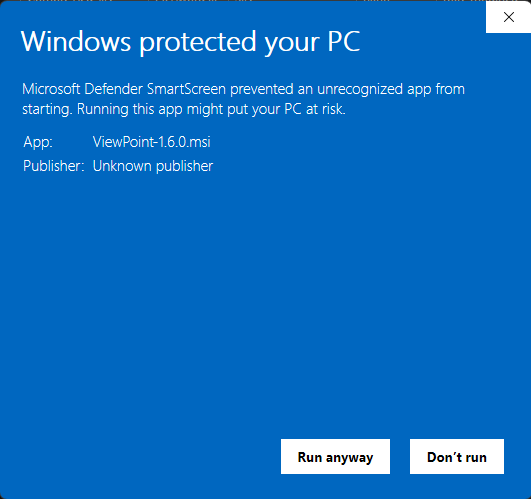
Click More info (left), then Run anyway (right). “Windows protected your PC”
SmartScreen flags VoidLoop ViewPoint™ as an unrecognized app from an unknown publisher. This is expected for the current release and is safe to run. If the Run anyway button is missing, click More info first to reveal it.
-
Click through each installer dialog.
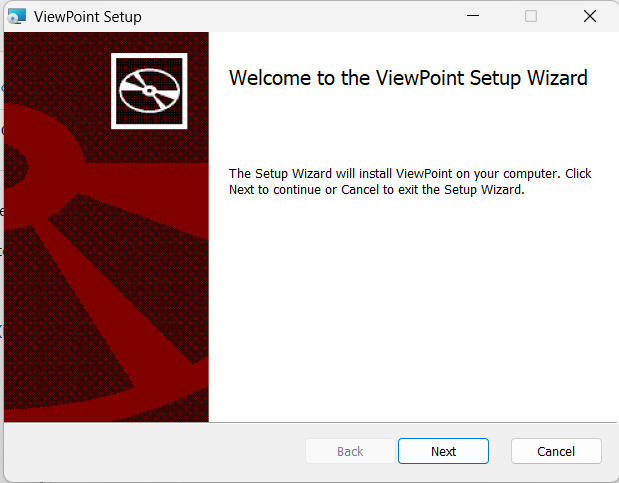
Welcome to the ViewPoint Setup Wizard — click Next. 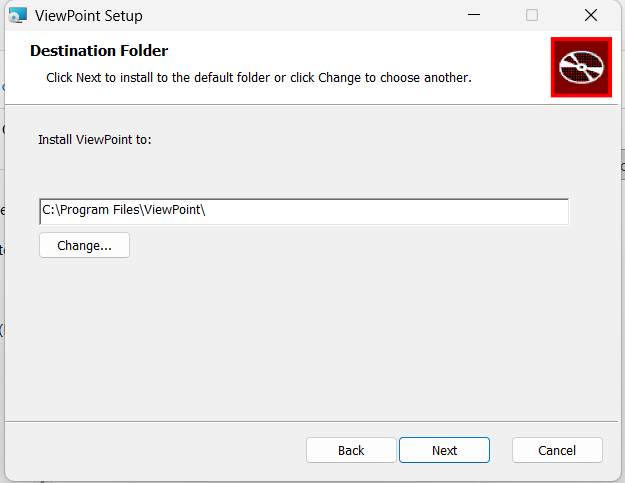
Click Next to install to the default folder, or Change to choose another. -
Complete the installation wizard.
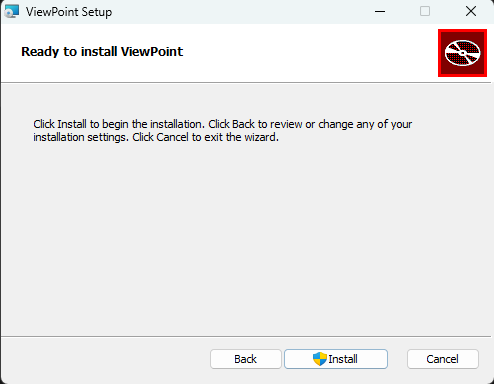
Click Install to begin, then finish the wizard. -
Launch VoidLoop ViewPoint™ once to confirm it opens normally.
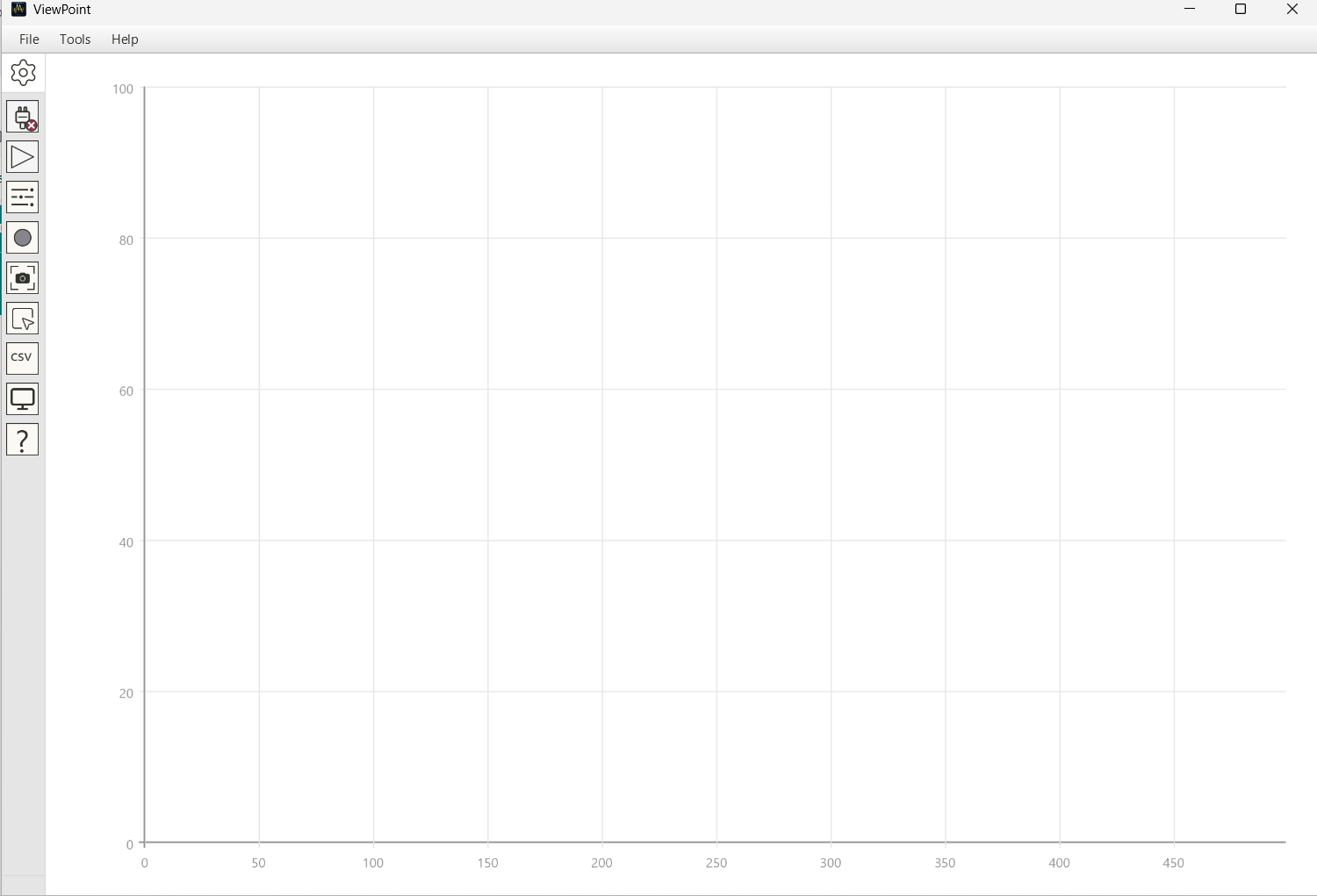
VoidLoop ViewPoint™ on first launch, showing the empty default plot.
Next steps
With the desktop app installed, finish the setup on the Arduino side:
- Install the VoidLoop ViewPoint™ Arduino library — adds the
#include <ViewPoint.h>API and the example sketches. - Upload your first sketch and connect — install Teensy board support, connect the Teensy, and confirm your first live plot.
For any other issues, see Troubleshooting.