Install on macOS
This page covers installing the VoidLoop ViewPoint™ desktop application on macOS (macOS 11 Big Sur or later). The desktop app is the live data receiver and visualizer. Installing the VoidLoop ViewPoint™ Arduino library and uploading your first sketch are covered separately in Next steps.
Pick the build that matches your Mac's chip
VoidLoop ViewPoint™ ships as separate Apple Silicon and Apple Intel builds. To check which you have, open the Apple menu → About This Mac: an "Apple M-series" chip means Apple Silicon, while "Intel" means the Intel build. Download the matching macOS build before you begin.
1. Download and Install VoidLoop ViewPoint™
- Download the macOS build of VoidLoop ViewPoint™ that matches your Mac's chip, along with the accompanying files.
- Open the downloaded VoidLoop ViewPoint™
.dmgfile. - Drag
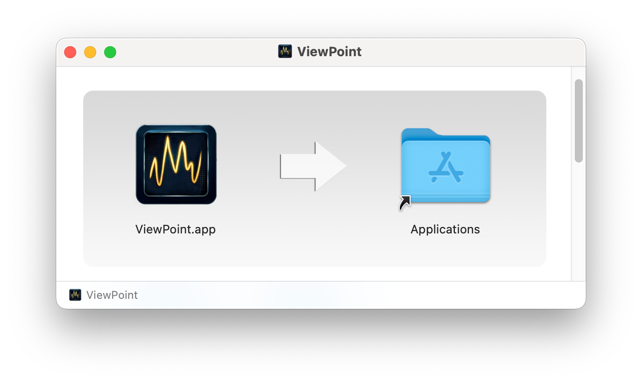
ViewPoint.appinto theApplicationsfolder. - Eject the mounted disk image after the copy finishes.
Code signing is coming soon
The current build is unsigned, so macOS may block the first launch. Once code signing is fully enabled this step will no longer be necessary. Until then, use the one-time workaround below.
If macOS blocks the first launch:
-
Try to open
ViewPoint.apponce.
The first launch is blocked -
Optionally, click the ? to be guided to System Settings, then click Done and exit the help menu.
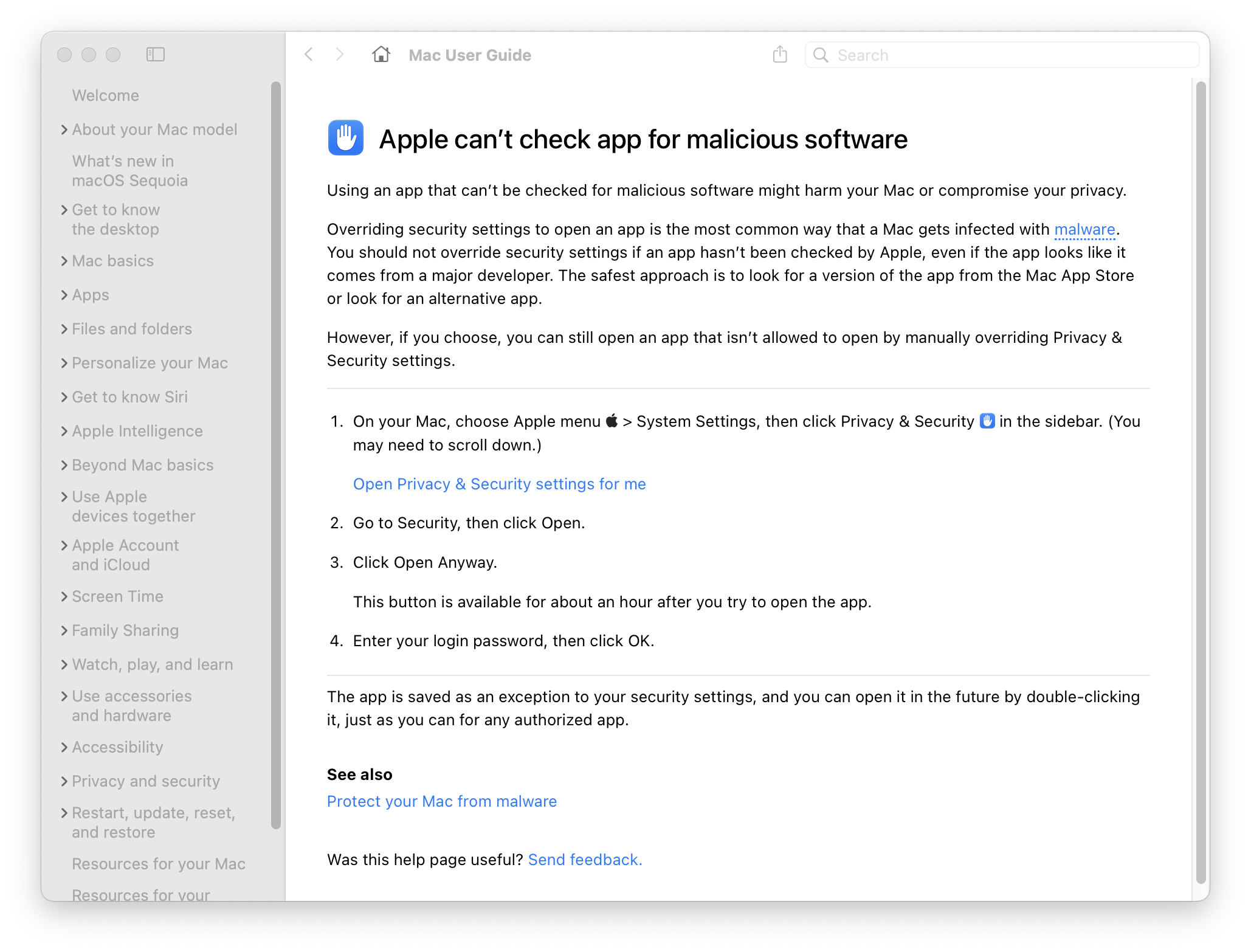
"Can't check app for malicious software" help dialog -
Open System Settings ▸ Privacy & Security.
-
Click Open Anyway for ViewPoint.
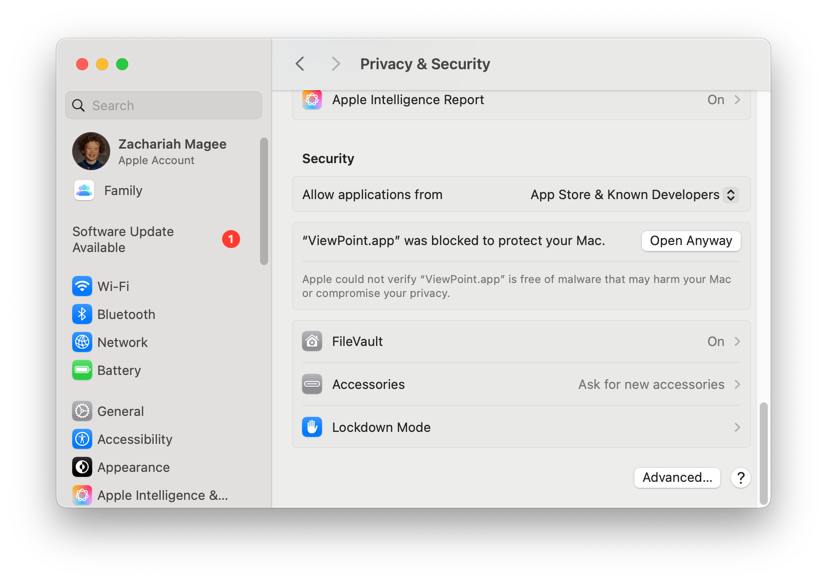
Privacy & Security ▸ Open Anyway -
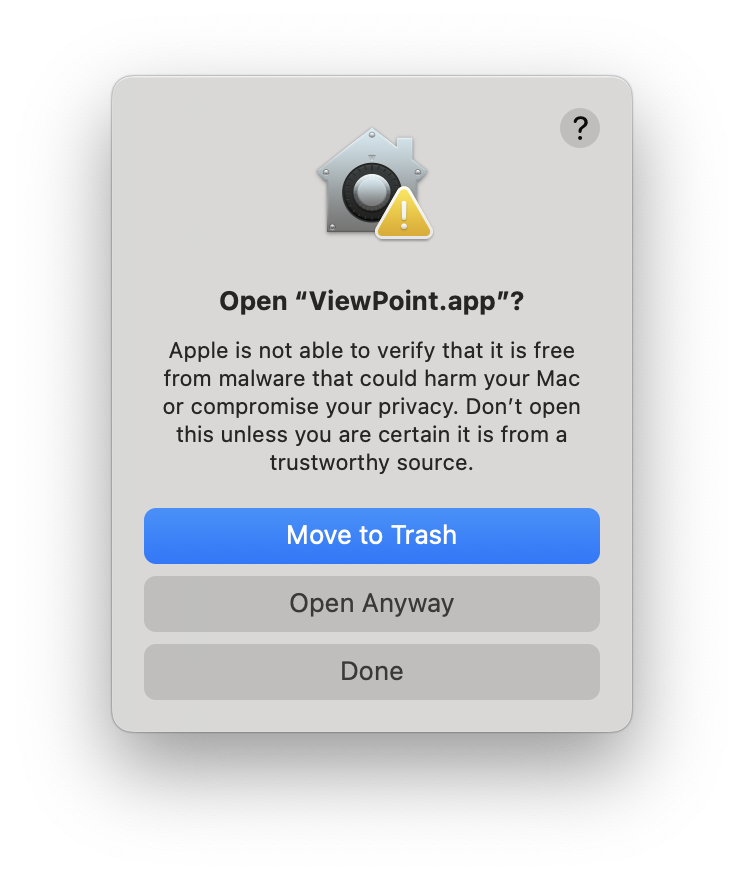
Work through the dialogs, clicking Open Anyway and entering your password when prompted.
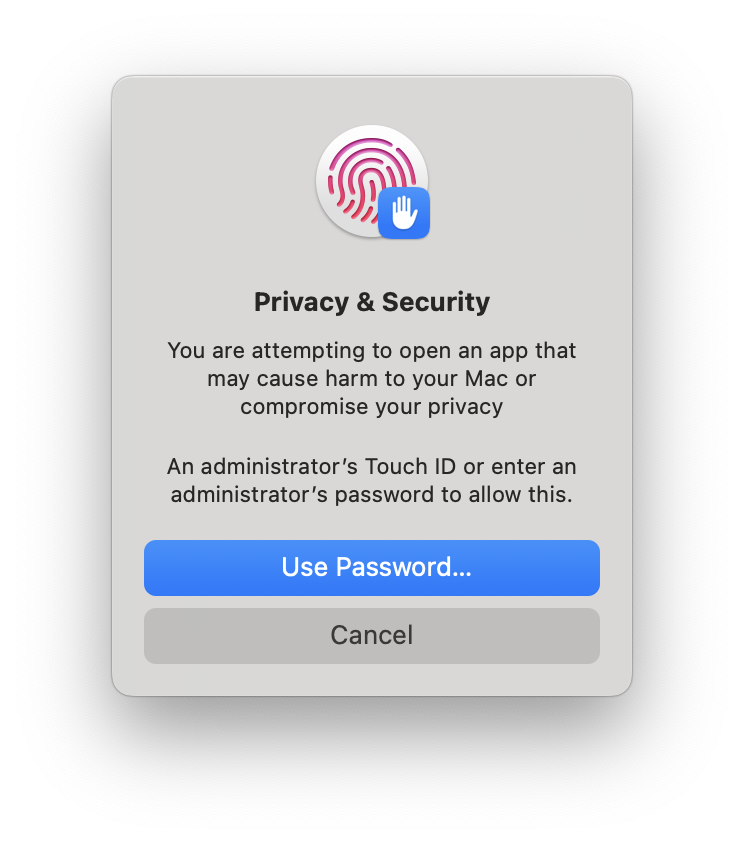
-
Launch the app again to confirm it opens normally. Use Spotlight to search for ViewPoint, or open it directly from Finder under
Applications/ViewPoint.app.
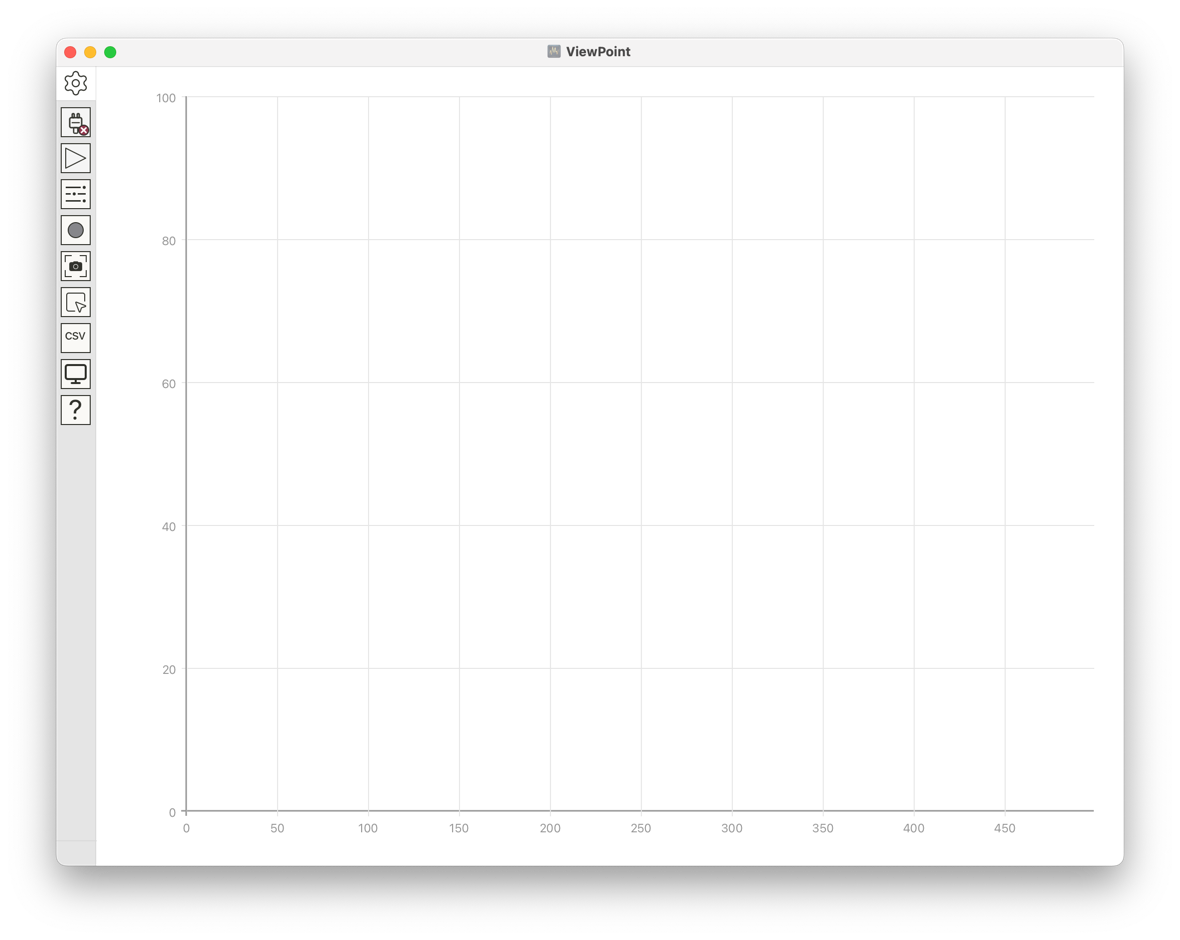
If Open Anyway does not appear
Make sure you tried to open ViewPoint.app at least once first — the
Open Anyway button only shows in System Settings ▸ Privacy &
Security after macOS has blocked a launch attempt. See Apple's guide on
opening apps from outside the App Store
for more detail.
Next steps
With the desktop app installed, finish your setup:
- Install the VoidLoop ViewPoint™ Arduino library (and the optional SignalCore library): see Install the VoidLoop ViewPoint™ Arduino Library.
- Connect your board and upload your first sketch: follow the
QuickStart to upload
HelloPlotter, connect VoidLoop ViewPoint™ to the Teensy, and confirm your first live plot.
For everything else — boards not appearing, no data after upload, etc. — see Troubleshooting.